
If you use PhonePe regularly, your transaction history can quickly become hundreds of rows of payments, transfers, recharges, bills, and other transactions.
The problem isn't getting the data.
The problem is understanding it.
A PhonePe CSV export gives you structured transaction data, but a spreadsheet full of rows doesn't immediately tell you how much you spent on food, where most of your money went, which merchants you pay repeatedly, or how your spending changes throughout the month.
That's where a PhonePe CSV analyzer can help.
With MoneyTools, you can now upload your raw PhonePe CSV export and turn that transaction history into clear spending and money-flow insights all directly in your browser.
What Is a PhonePe CSV Statement?
A PhonePe CSV statement is a downloadable file containing your transaction history in a structured, spreadsheet-friendly format.
Instead of transactions being presented only as a document or a long list inside the app, CSV data can be processed into individual transaction records containing information such as dates, descriptions, transaction types, and amounts.
This makes CSV particularly useful when you want to:
- Analyze your PhonePe transactions
- Calculate total spending
- Separate money coming in from money going out
- Find your largest transactions
- Group similar merchants
- Understand spending patterns
- Export your data for further analysis
But there's an important distinction:
Having transaction data isn't the same as having financial insights.
A CSV gives you the raw material. You still need a way to turn those rows into something meaningful.
How to Download Your PhonePe Transaction History as CSV
PhonePe provides access to your transaction history and statement options through the app. The exact interface can change as PhonePe updates its app, but the general process is:
Step 1: Open PhonePe
Open the PhonePe app and go to your transaction history.
Step 2: Open your statement or download option
Look for the option to download your transaction statement.
Step 3: Select your date range
Choose the period you want to analyze.
For example:
- One month
- Several months
- A custom date range
If you're trying to understand your monthly spending, starting with one complete month makes the results easier to interpret.
Step 4: Choose CSV when available
Download the transaction history in CSV format.
Keep the original file on your device, you don't need to manually open or modify it before analyzing it with MoneyTools.
Tip: If you're analyzing your finances regularly, downloading one month at a time can make it easier to compare spending patterns over time.
Why Analyze a PhonePe CSV Instead of Just Looking at Your Transactions?
Scrolling through transaction history works when you need to find one payment.
It becomes much harder when you want to answer questions about hundreds of payments.
For example:
"How much did I actually spend this month?"
Finding every debit transaction and adding them manually is tedious.
"Where did most of my money go?"
A transaction list doesn't immediately give you a category-level picture.
"Which merchants do I keep paying?"
Repeated payments can be scattered across dozens of rows.
"Which days were unusually expensive?"
You need to aggregate transactions by date before the pattern becomes obvious.
"How much money came in compared with how much went out?"
You need to separate credits and debits and compare the totals.
This is the difference between transaction history and spending analysis.
How to Analyze Your PhonePe CSV with MoneyTools
MoneyTools now supports raw PhonePe CSV exports, so you don't have to convert the file into another format first.
The process is simple.
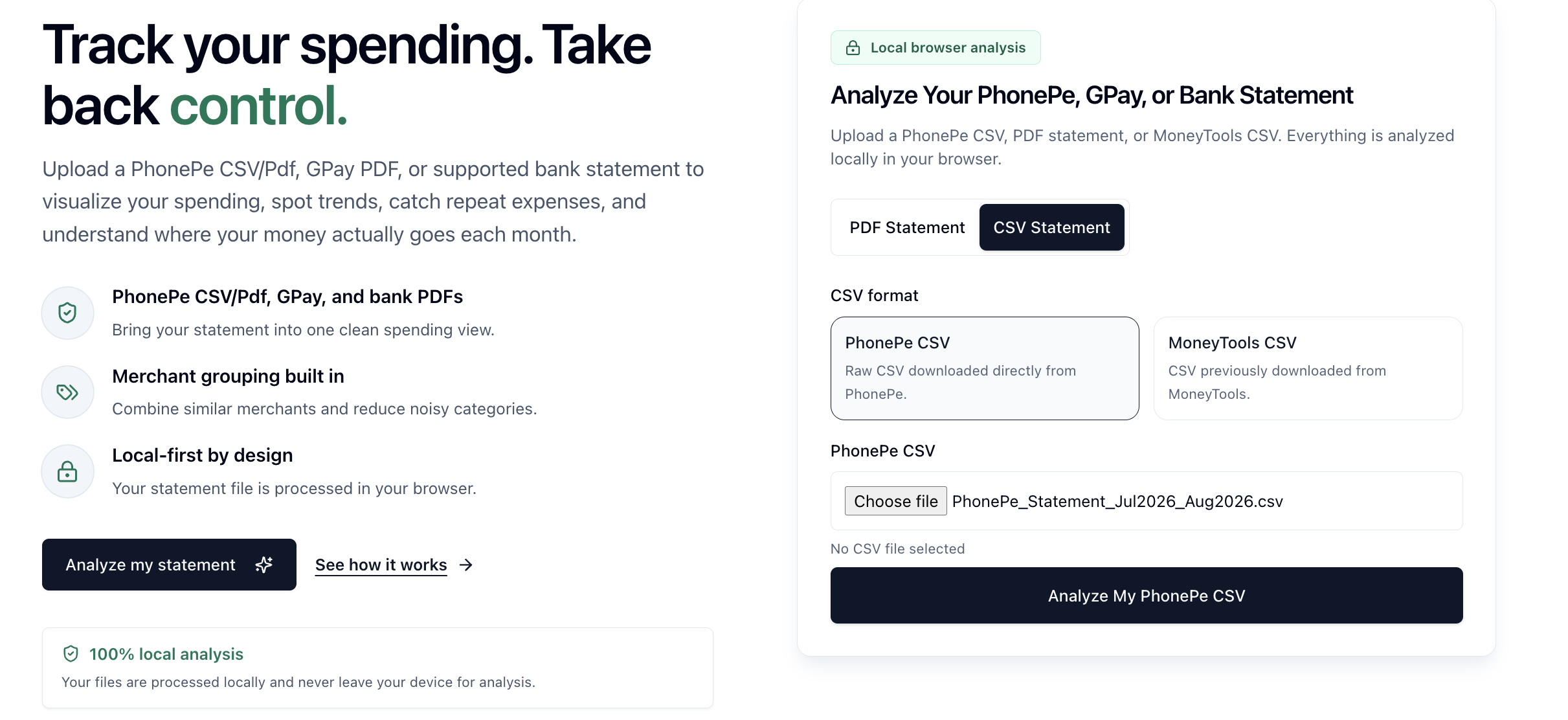
1. Open MoneyTools
Go to MoneyTools and choose the statement analysis tool.
Select:
CSV Statement → PhonePe CSV Export
[Screenshot: CSV Statement tab with PhonePe CSV Export selected]
2. Upload Your PhonePe CSV
Choose the CSV file you downloaded from PhonePe.
You don't need to manually clean the spreadsheet first.
MoneyTools reads the supported PhonePe CSV structure and maps the transaction rows into analyzable records.
3. Let MoneyTools Extract and Validate the Transactions
Once you start the analysis, MoneyTools processes the transaction rows and validates the information it can identify.
The goal isn't simply to display every row.
The parser needs to understand things such as:
- Transaction dates
- Transaction amounts
- Debit and credit direction
- Transaction descriptions
- Merchant information
- Relevant transaction details
Where possible, totals are checked before the data is used to generate visual insights.
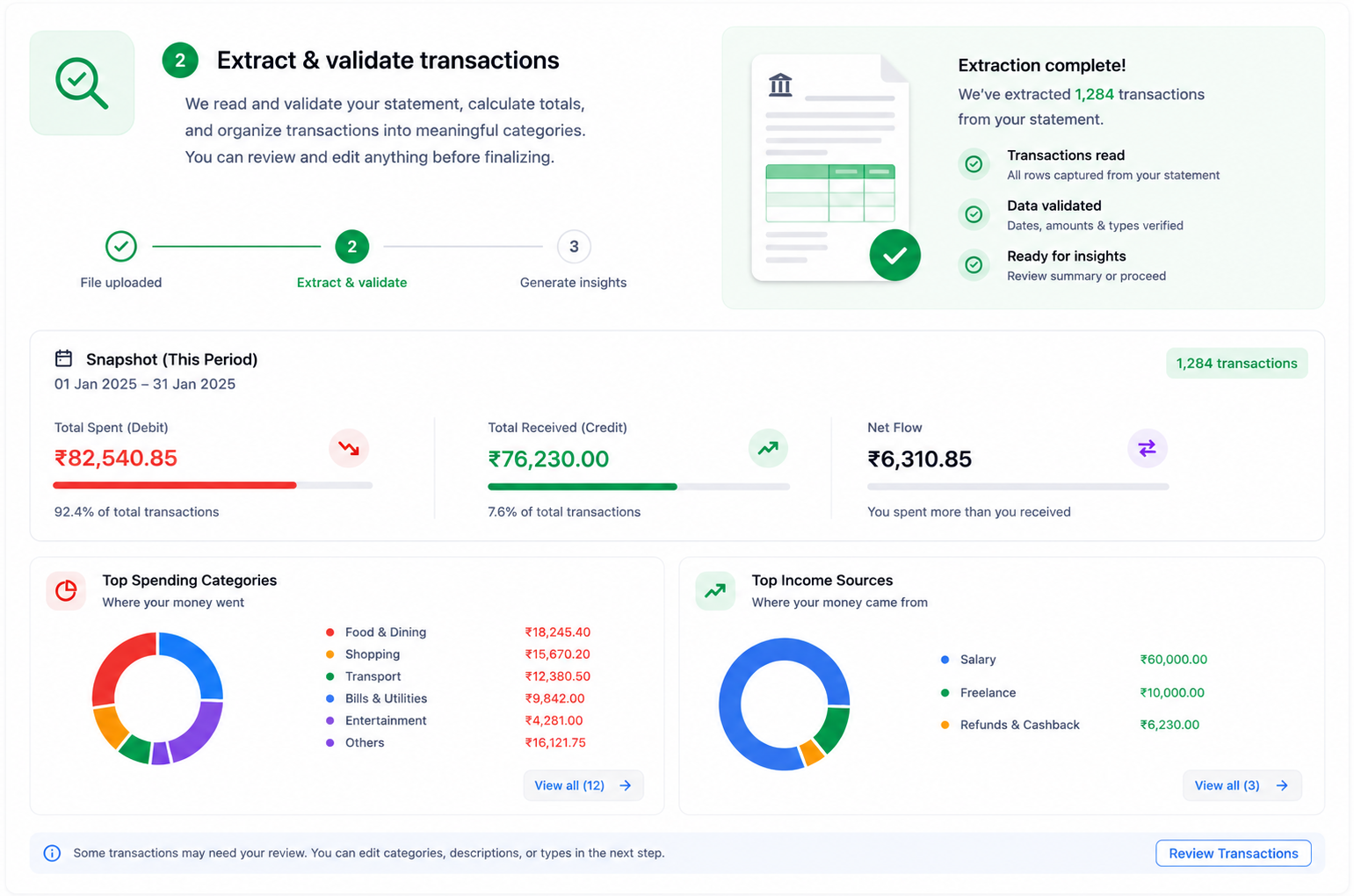
If the CSV structure is incomplete, changed, or doesn't contain the expected transaction information, MoneyTools can prevent unreliable charts from being presented.
What Can You See From Your PhonePe CSV?
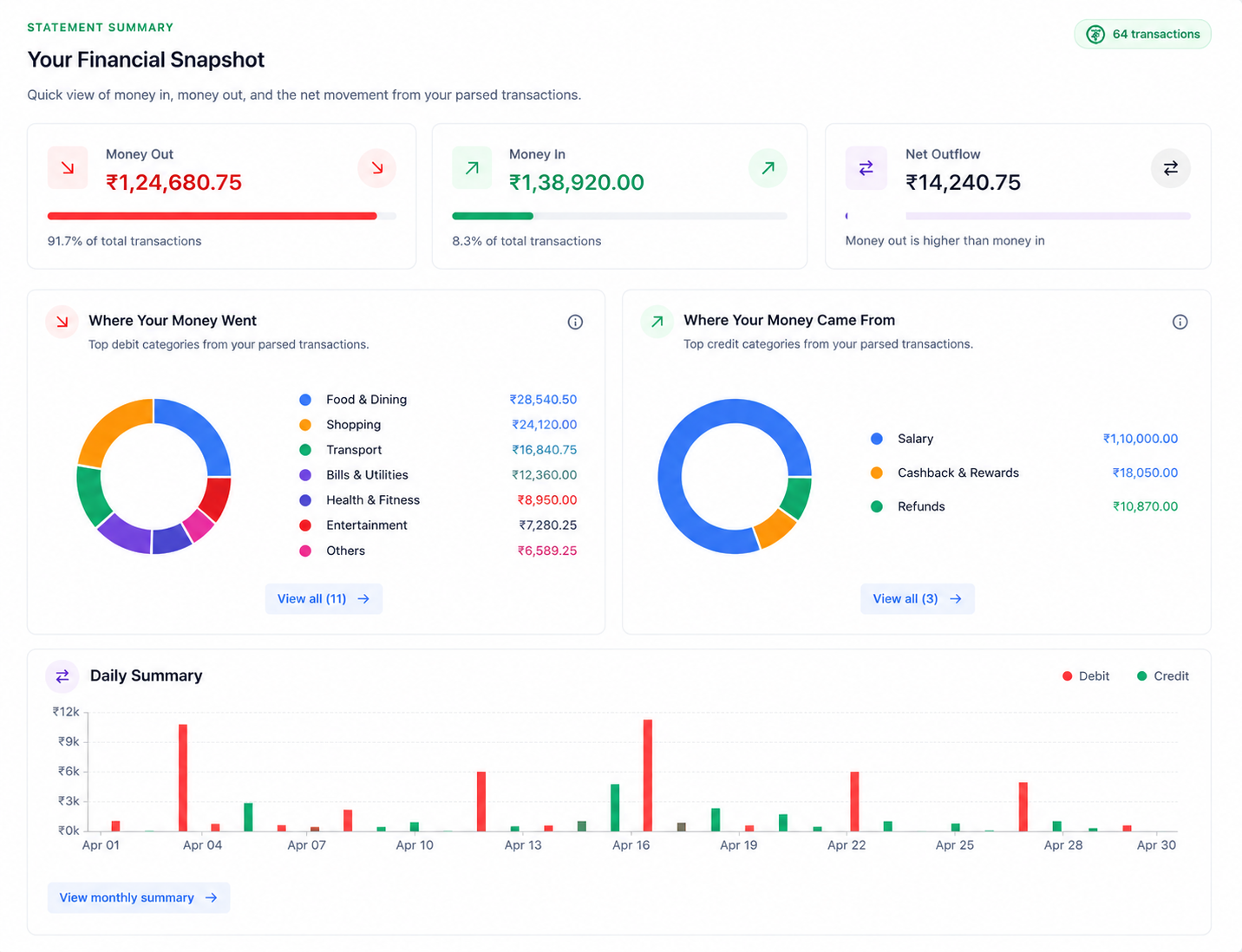
Once your transactions have been processed, the raw spreadsheet becomes much easier to understand.
Total Money Out
See the total amount that left your account during the selected period.
Instead of manually adding hundreds of transactions, you get a single spending figure.
Total Money In
See the money that came into your account through recorded credit transactions.
Net Money Flow
Compare your total inflows and outflows to understand the overall movement of money during the selected period.
Spending Categories
See where your money is going across different categories.
For example:
- Food & Dining
- Shopping
- Transport
- Bills & Utilities
- Health & Fitness
- Entertainment
- Other expenses
This helps turn a long transaction list into a much clearer picture of your spending behavior.
Find Your Biggest Spending Areas
One of the most useful things you can do with a PhonePe transaction history is identify where the largest portions of your spending are going.
Imagine seeing:
Food & Dining — ₹18,245Shopping — ₹15,670
Transport — ₹12,380
Bills & Utilities — ₹9,842
Suddenly, your spending becomes much easier to understand.
You might discover that your biggest expense isn't the one you expected.
And that's exactly why visualization matters.
See Your Daily Spending Trend
Your total monthly spending tells you how much you spent.
A daily spending chart can show you when you spent it.
MoneyTools can visualize your daily money flow so you can identify unusually expensive days, clusters of spending, and periods with higher inflows or outflows.
[Screenshot: Daily Spending Trend chart]
For example, a large spike on one day could correspond to:
- A major purchase
- Travel
- A bill payment
- Shopping
- A recurring payment
- Several smaller transactions occurring on the same day
Instead of searching through your transaction history to find the reason for the spike, you now have a starting point for investigating it.
PhonePe CSV vs PhonePe PDF: Which Is Better?
If you're given a choice between downloading a PhonePe statement as CSV or PDF, CSV is generally the better format for analysis because the data is already structured into rows and columns.
| Feature | PhonePe CSV | PhonePe PDF |
|---|---|---|
| Structured transaction data | ✅ | ⚠️ |
| Spreadsheet-friendly | ✅ | ❌ |
| Easy to process automatically | ✅ | ⚠️ |
| Easy to read visually | ⚠️ | ✅ |
| Useful for automated analysis | ✅ | ✅ |
A PDF is useful when you want a document you can read or keep as a record.
A CSV is particularly useful when you want to analyze the underlying transaction data.
That's why MoneyTools now supports direct PhonePe CSV parsing.
Do You Need Excel or Google Sheets?
You can absolutely open a PhonePe CSV in Excel or Google Sheets.
But opening the file is only the first step.
To get meaningful spending insights yourself, you'd typically need to:
- Import the CSV
- Understand the columns
- Clean transaction descriptions
- Separate credits and debits
- Calculate totals
- Group merchants
- Create categories
- Build pivot tables
- Create charts
- Investigate unusual transactions
That's a lot of work if your goal is simply to answer:
"Where did my money go?"
MoneyTools is designed to handle that analysis for you.
Is It Safe to Upload a PhonePe CSV?
Financial statements contain sensitive information, so privacy matters.
MoneyTools is designed around local-first statement analysis. Supported statement analysis runs in your browser rather than requiring your statement to be uploaded to a server for server-side parsing.
That means your financial statement can be processed on your device while you explore your spending.
MoneyTools also doesn't require you to create an account just to analyze a statement.
Important: Always review financial data and generated results before relying on them for financial decisions. Statement formats can change, and parsing may not be perfect for every file.
Who Should Use a PhonePe CSV Analyzer?
A PhonePe CSV analyzer can be useful if you:
- Use PhonePe for everyday payments
- Make many UPI transactions each month
- Want to understand your monthly expenses
- Are trying to create a realistic budget
- Want to identify unnecessary spending
- Prefer analyzing your own data instead of manually entering expenses
- Want to see spending trends visually
- Don't want to maintain a separate transaction record manually
You don't need to become a personal-finance expert.
You just need your transaction data.
A Simple Monthly Money Review
You can turn this into a simple monthly habit.
Once a month:
1. Download your PhonePe CSV
Choose the month you want to review.
2. Upload it to MoneyTools
Select the PhonePe CSV option.
3. Review your totals
Look at money in, money out, and net flow.
4. Check your categories
Find the areas where most of your spending went.
5. Look at the daily trend
Investigate unusually high-spending days.
6. Pick one thing to change
Don't try to completely redesign your finances every month.
Maybe your takeaway is:
"I spent too much on food delivery."
Or:
"My shopping spending increased this month."
Or simply:
"My spending is actually under control."
The goal isn't to feel guilty about spending.
The goal is to understand it.
Why We Built PhonePe CSV Support
MoneyTools started with a simple idea:
Your financial data should help you understand your money—not become another spreadsheet you have to maintain.
PhonePe already gives you the transaction data.
We wanted to make the next step easier.
With direct PhonePe CSV support, you can go from:
PhonePe transaction history → CSV → MoneyTools → spending insights
without manually cleaning and restructuring the file first.
And because the analysis is designed to happen locally in your browser, you can explore your finances without handing your statement over to another financial-tracking service.
Frequently Asked Questions
Can I analyze a PhonePe CSV file?
Yes. MoneyTools now supports raw PhonePe CSV exports and can parse supported transaction data into spending and money-flow insights.
How do I analyze my PhonePe transaction history?
Download your PhonePe transaction history as a CSV, upload it to MoneyTools, and let MoneyTools process the supported transaction data. You can then view spending totals, income, categories, and trends.
What is the best way to track PhonePe expenses?
For a simple monthly review, download your PhonePe transaction history as CSV and analyze it with a tool that can automatically aggregate and visualize the transactions.
Can I analyze PhonePe transactions in Excel?
Yes. Excel and Google Sheets can open CSV files, but you'll need to perform the calculations, grouping, categorization, and visualization yourself.
Is CSV better than PDF for analyzing PhonePe transactions?
Generally, yes. CSV is structured data, making it easier to process and analyze than a PDF.
Does MoneyTools support PhonePe CSV?
Yes. MoneyTools supports raw PhonePe CSV exports in addition to supported statement formats.
Does MoneyTools store my PhonePe CSV?
MoneyTools is designed for local-first statement analysis, where supported statement files are processed in your browser rather than uploaded for server-side analysis.
Can I analyze several months of PhonePe transactions?
You can analyze supported statement files for the periods you have available. For meaningful budgeting, reviewing individual months and comparing the results can help reveal changes in spending patterns.
Is MoneyTools free?
MoneyTools provides statement-analysis functionality through its website. Check the current product page for the latest availability and features.
Start Analyzing Your PhonePe Transactions
Your PhonePe transaction history already contains a lot of information about your financial habits.
You don't need another spreadsheet full of rows.
You need answers:
How much did I spend?
Where did it go?
What changed this month?
What should I pay attention to?
Download your PhonePe CSV, upload it to MoneyTools, and turn your transaction history into something you can actually understand.
Your data tells the story. MoneyTools helps you see it.